FAQ and Troubleshooting for BENTSAI B2, B3 and 6105F Handheld Inkjet Printers
Welcome to the comprehensive FAQ and troubleshooting guide for the Bentsai 6015 Series. This series includes the versatile Bentsai BT-HH6105B2, the high-performance Bentsai BT-HH6105B3, and the specialized Bentsai BT-HH6105F. These models are designed to deliver reliable, on-demand printing for a variety of industrial and commercial applications.
The purpose of this guide is to provide you with quick answers to the most common operational questions, detailed steps for maintenance, and effective solutions for troubleshooting issues. Whether you are setting up a new device or optimizing an existing workflow, this resource will help you keep your printer running smoothly.
General Operation and Printing Capabilities
Q1: Can BENTSAI B2, B3 and 6105F printers print in multiple colors at once?
No, the Bentsai B2, B3, and 6105F printers are designed to print using a single ink cartridge at a time. To change colors, you must swap the ink cartridge. The specific colors available depend on the type of ink you are using.
List of Ink Options
- Aqueous ink colors: Black, Cyan, Magenta, Yellow, Green
- Solvent ink colors: Black, White, Magenta, Cyan, Yellow, Green, Invisible
Q2: Can I use the Bentsai printer while it is charging?
Yes, the Bentsai handheld printers support pass-through charging. You can continue to operate the printer while it is plugged into a power source. This is particularly useful for extended printing sessions where the battery life might be a constraint.
Q3: How do I upgrade the firmware on Bentsai B2, B3 or 6105F printers?
Before upgrading, please ensure the printer has at least 50% battery. If power is below 35%, connect to an external power adapter. Follow these steps to upgrade your printer:
- Check Current Firmware Version: On the printer's home screen, go to Device or Maintenance to view your current firmware version. Confirm that it is eligible for the upgrade.
| Printer Model | Current Version | Upgradable? | New Version | Download | Notes |
|---|---|---|---|---|---|
|
BT-HH6105B2 BT-HH6105B3 BT-HH6105F |
V1069 | No | — | — | Only compatible with BT-2560N / BT-2580P cartridges |
| 1.0.10 – 1.0.18 | Yes | 1.1.19 | Download | After upgrade, only compatible with BB21 / BB22 cartridges | |
| 2.0.21 – 3.0.28 | Yes | 4.0.37 | Download | After upgrade, only compatible with BB21 / BB22 cartridges |
- Download the Firmware: Contact support@bentsaishop.com for the latest firmware version.
- Copy to USB Drive: Save the firmware file to a USB flash drive.
- Insert USB Drive: Plug the USB drive into your printer.
- Start Upgrade: On the dashboard, tap "Maintenance" → "FW upgrade" → "Confirm".
- Wait: The printer will reboot automatically. This takes 2–5 minutes.
Attention: For customers upgrading to V4.0.34 on 6105 series models: After the upgrade, your printer will no longer support BT-2560N or BT-2580P ink cartridges. Please switch to BB21B (water-based) or BB22B (fast-dry) cartridges in advance.
Ink Cartridge Troubleshooting and Maintenance
Q1: Can I remove or insert ink cartridges while the printer is turned on?
Yes, the Bentsai series is designed with a "hot-swap" feature. You can safely remove or insert ink cartridges while the printer is powered on. The system will automatically detect the cartridge change. However, ensure the printhead is not actively printing or moving to avoid any potential issues.
Q2: Can I use third-party ink cartridges with Bentsai handheld printers?
To ensure optimal print quality, reliability, and longevity of your printer, we strongly recommend using genuine Bentsai ink cartridges. Third-party cartridges may not be recognized by the printer's firmware, could cause clogging, void your warranty, or result in inconsistent printing output.
Q3: How to fix the "Ink Box Not Installed" error message?
If you see an "Ink Box Not Installed" error on your screen, even with a cartridge inserted, use the following checklist to resolve the issue.
Troubleshooting Checklist:
- Check the Chip Sensor: Press the chip sensor pins inside the cartridge slot to verify they bounce back normally.
- Clean the Cartridge Chip: Gently clean the ink cartridge's metal chip with an eraser or lint-free cloth to remove any dirt or residue.
- Inspect the Chip: Check if any parts of the electrical connections on the cartridge chip are missing or damaged.
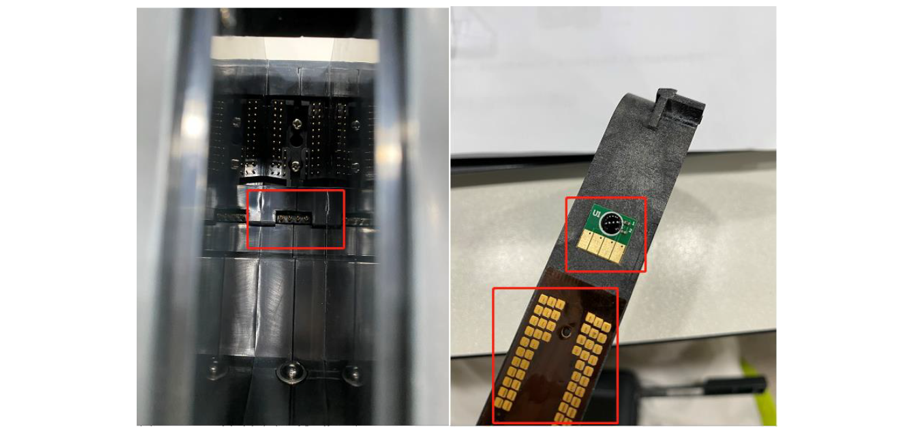
If the issue persists after completing these steps, please contact support@bentsaishop.com for further support.
Q4: How to fix low ink output or clogged print-heads after long-term storage?
If your printer has been stored for a long period without use, the ink in the nozzles may dry out, leading to poor print quality. Follow these steps to restore performance.
Troubleshooting Steps:
- Perform Automatic Cleaning: Navigate to the maintenance menu on the printer and select "Head Cleaning." Repeat this 2-3 times if necessary.
- Check the Test Print: After cleaning, print a test pattern to evaluate the nozzle performance.
- Clean Manually: If automatic cleaning fails, use the following method.
- Prepare a Cloth: Fold a lint-free cloth and dampen it slightly with a small amount of isopropyl alcohol or cleaning solution.
- Wipe the Nozzle: Gently press the printhead nozzle against the damp cloth for 3-5 seconds to allow the cleaning solution to dissolve dried ink.
- If the problem continues, contact us for further support.
Warm Tips for Maintaining Ink Cartridges:
Before Printing: Wipe the ink cartridge nozzle with alcohol and a facial tissue, and shake the ink cartridge before use.
After Printing: Clean the ink cartridge again. When not printing, remove the ink cartridge from the printer and install the protective clip on the cartridge to prevent ink from drying.
Differences and Purchases
BENTSAI 6105 series include the 6105B2, 6105B3 and 6105F. They share some common features such as the same print height of 2.5mm to 12.7mm, up to 600 DPI resolution, and can print on porous and non-porous surfaces such as cardboard, wood, plastic, glass, and metal.
However, they are slightly different as well.
Q1: Differences between 6105 series models
6105B2: Entry-level model. Supports 1–5 lines of text, QR codes, barcodes, and logos. Uses BT-2560N (water-based) or BT-2580P (solvent) cartridges. Does not support variable data printing or file import/export.
6105B3: Advanced model. It shares the same print height and ink types as B2, but adds variable data printing and the ability to import/export txt and csv files. Uses the same BT-2560N/BT-2580P cartridge series.
6015F: This is the newest model that upgraded from model B2/B3. It features new code types (ITF-14, GS1-Datamatrix), a new ink system (BB21/BB22 series), faster touchscreen response, enhanced stability, and support for variable data printing and file import/export.
Q2: Can I purchase B2 and B3 now?
No, the BT-HH6105B2 and BT-HH6105B3 are no longer available. They have been replaced by the BT-HH6105F, which runs smoother and has more features. We recommend going with the 6105F.
More Technical Support
If you did not find the answer you were looking for, or if the troubleshooting steps above did not resolve your issue, further assistance is available. Please consult the user manual included with your product, or contact our technical support team at support@bentsaishop.com with your model number and a description of the issue for personalized assistance.
Maintaining your Bentsai 6015 Series printer is straightforward when you have the right information. By following these operational guidelines and troubleshooting tips for your Bentsai BT-HH6105B2, B3, or 6105F, you can minimize downtime and ensure consistent, high-quality prints for your business.
About the Author

Matty Chen is an Inkjet Application Engineer, and BENTSAI Inkjet Printing technology Consultant. He specializes in industrial inkjet printing technologies, with a focus on handheld printers, thermal inkjet systems, and coding solutions. His work explores ink performance, material compatibility, and practical printing applications for businesses across manufacturing, packaging, and product customization industries.

Ask Question
No questions and answers

